Relations
Relations define how tables are connected to each other — they are the D365 equivalent of foreign keys. When you define a relation on a table, that relationship is automatically inherited by every form, query, view, and data entity that uses the table. This single point of definition means you define the join logic once and it propagates everywhere.
Relations serve three purposes:
- Referential integrity — enforce that a value in one table corresponds to a valid record in another.
- Automatic joins — forms and queries use relations to automatically join tables (e.g., populating lookups, filtering related records).
- Delete actions — control what happens to related records when a parent record is deleted.
Relationship Types
The RelationshipType property classifies the nature of the connection between the two tables.
| Type | Value | Description |
|---|---|---|
| NotSpecified | 0 | No classification. Avoid — always set a specific type for clarity. |
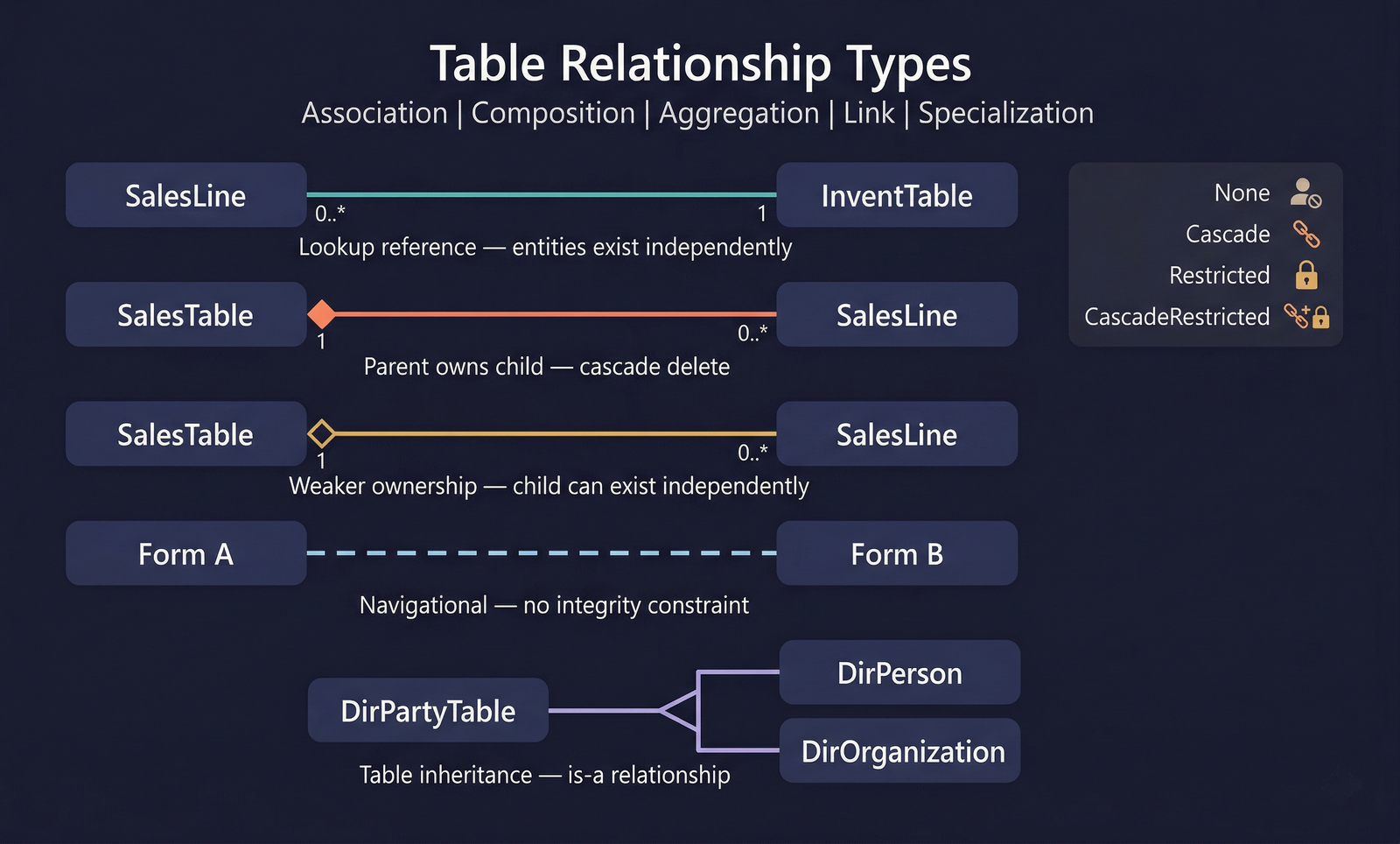
| Association | 1 | A general reference from one table to another. The related table exists independently. Example: SalesLine.ItemId → InventTable.ItemId. |
| Composition | 2 | The child table cannot exist without the parent. Deleting the parent should delete all children. Example: SalesTable → SalesLine. |
| Link | 3 | A navigational relationship used primarily for form linking. Does not imply ownership or integrity. |
| Specialization | 4 | The current table is a specialized form of the related table (inheritance pattern). Example: DirPartyTable → DirPerson / DirOrganization. |
| Aggregation | 5 | Similar to composition but weaker — the child can logically exist without the parent. |
Association and Composition are the most commonly used types. Use Association for lookup references and Composition for parent-child header/line patterns.
Cardinality
Two properties define the multiplicity of the relationship:
- Cardinality — how many records on the current table side participate.
- RelatedTableCardinality — how many records on the related (referenced) table side participate.
Cardinality Values
| Value | Name | Meaning |
|---|---|---|
| 0 | NotSpecified | Not set. |
| 1 | ZeroOne | Zero or one record. |
| 2 | ExactlyOne | Exactly one record (mandatory). |
| 3 | ZeroMore | Zero or more records. |
| 4 | OneMore | One or more records. |
RelatedTableCardinality Values
| Value | Name | Meaning |
|---|---|---|
| 0 | NotSpecified | Not set. |
| 1 | ZeroOne | The related record may or may not exist. |
| 2 | ExactlyOne | The related record must exist. |
For example, a SalesLine → InventTable relation would have:
- Cardinality = ZeroMore (many sales lines can reference the same item)
- RelatedTableCardinality = ExactlyOne (every sales line must reference a valid item)
Constraint Types
Constraints define the actual join conditions of the relation. Every relation contains one or more constraints that together form the WHERE clause of the join.
Field Constraint
The most common type. Joins a field on the current table to a field on the related table:
CurrentTable.Field = RelatedTable.RelatedField
Example: SalesLine.ItemId = InventTable.ItemId
Fixed Constraint
Fixes a field on the current table to a constant value. This is used when the relation only applies to rows where a specific field has a particular value:
CurrentTable.Field = <ConstantValue>
Example: On DirPartyTable, a relation to DirPerson might include DirPartyTable.Type = 1 (where 1 = Person). This ensures the relation only matches party records that are persons.
The Value property holds the integer constant. The ValueStr property can hold a string constant.
Related Fixed Constraint
Fixes a field on the related table to a constant value. Similar to Fixed but applies to the target side:
RelatedTable.RelatedField = <ConstantValue>
Example: A relation from SalesTable to LogisticsPostalAddress might include LogisticsPostalAddress.Type = 2 (where 2 = delivery address), ensuring only delivery addresses are joined.
Combining Constraints
Relations commonly combine multiple constraint types. For example, a relation joining an order line to a specific address type might have:
- Field constraint:
SalesLine.OrderId = SalesTable.SalesId - Related fixed constraint:
SalesTable.AddressType = 3(ship-to)
All constraints in a relation are joined with AND logic.
Delete Actions
The OnDelete property determines what happens to records in the current table when the related (parent) record is deleted:
| Action | Value | Behaviour |
|---|---|---|
| None | 0 | No action. Related records are left as orphans. |
| Cascade | 1 | Delete all related records when the parent is deleted. Use for Composition relationships. |
| Restricted | 2 | Prevent deletion of the parent if related records exist. The delete operation fails with an error. |
| CascadeRestricted | 3 | Cascade the delete, but restrict (prevent) the delete if any of the cascaded records themselves have restricted delete actions. A safe cascade — it only proceeds if the entire chain can be deleted. |
Cascade deletes can be dangerous on large datasets. They run within the same transaction as the parent delete and can cause long lock durations. Always consider the volume of child records before setting Cascade.
Setting OnDelete to None on a Composition relationship will leave orphan records in the database. Always use Cascade or CascadeRestricted for true parent-child relationships.
Navigation Properties
When CreateNavigationPropertyMethods is set to Yes, D365 generates navigation methods on the table buffer that allow traversing the relation in X++ code.
The method name defaults to the RelatedTableRole value but can be overridden with NavigationPropertyMethodNameOverride.
Foreign Key Relations
AxTableRelationForeignKey is a specialized subtype of relation that maps to a surrogate foreign key (typically RecId). It has an additional Index property that specifies which index on the related table the foreign key maps to. The Constraints of a foreign key relation work identically to a standard relation.
Best Practices
- Always set RelationshipType — this metadata drives framework behaviour (e.g., form data source linking, data entity mapping).
- Set cardinality correctly — forms use cardinality to determine whether to auto-join data sources as inner or outer joins.
- Prefer Field constraints — they are the most readable and maintainable. Use Fixed and Related Fixed only when the join genuinely requires constant filtering.
- Use Restricted delete actions for lookup references — prevent orphan records without cascading mass deletes.
- Validate = Yes for data integrity — when enabled, the runtime checks that a matching record exists in the related table before allowing insert/update.
Relationship Types at a Glance
Properties
| Property | Display Name | Type | Description |
|---|---|---|---|
| Relation | |||
| Name | Name | String | The name of the element. |
| Tags | Tags | String | Tags for this element separated by semicolon. |
| RelatedTable | Related Table | String | Name of the related table. |
| Validate | Validate | NoYes | Determines whether to validate the reference. Values: No (0), Yes (1). |
| RelationshipType | Relationship Type | RelationshipType | Type of relationship. Values: NotSpecified (0), Association (1), Composition (2), Link (3), Specialization (4), Aggregation (5). |
| Cardinality | Cardinality | Cardinality | Cardinality on current table. Values: NotSpecified (0), ZeroOne (1), ExactlyOne (2), ZeroMore (3), OneMore (4). |
| RelatedTableCardinality | Related Table Cardinality | RelatedTableCardinality | Cardinality on the related table. Values: NotSpecified (0), ZeroOne (1), ExactlyOne (2). |
| OnDelete | On Delete | DeleteAction | How deletions in the main table are handled. Values: None (0), Cascade (1), Restricted (2), CascadeRestricted (3). |
| EntityRelationshipRole | Entity Relationship Role | String | The role a relationship plays with respect to joined tables. |
| Role | Role | String | The role name of this table in the relationship. |
| RelatedTableRole | Related Table Role | String | The role name of the related table in the relationship. |
| UseDefaultRoleNames | Use Default Role Names | NoYes | Whether to use default role names based on the current and related table names. Values: No (0), Yes (1). |
| CreateNavigationPropertyMethods | Create Navigation Property Methods | NoYes | Whether to create navigation setter methods based on related table role. Values: No (0), Yes (1). |
| NavigationPropertyMethodNameOverride | Navigation Property Method Name Override | String | The name to be used for navigation setter methods. If not specified, the related table role name is used. |
| EDTRelation | Edt Relation | NoYes | Whether this relation was auto-generated from an EDT relation. Values: No (0), Yes (1). |
| IsSystemGenerated | Is System Generated | NoYes | Indicates whether the element was system-generated. Values: No (0), Yes (1). |
| IsManuallyUpdated | Is Manually Updated | NoYes | Indicates whether the element was manually updated. Values: No (0), Yes (1). |
| Constraint (Base) | |||
| Name | Name | String | The name of the element. |
| Tags | Tags | String | Tags for this element separated by semicolon. |
| SourceEDT | Source EDT | String | The source EDT for this constraint. |
| Field Constraint | |||
| Field | Field | String | The field on the current table used in the join. |
| RelatedField | Related Field | String | The field on the related table used in the join. |
| Fixed Constraint | |||
| Field | Field | String | The field on the current table to fix to a constant. |
| Value | Value | Int32 | The integer constant value for the field condition. |
| ValueStr | Value | String | The string constant value for the field condition. |
| Related Fixed Constraint | |||
| RelatedField | Related Field | String | The field on the related table to fix to a constant. |
| Value | Value | Int32 | The integer constant value for the field condition. |
| ValueStr | Value | String | The string constant value for the field condition. |