Form Extensions
A Form Extension (AxFormExtension) is the primary mechanism for customising an existing form without modifying its original source code. The extension model is the cornerstone of overlay-free development in D365 F&O — it allows ISVs and customers to add data sources, controls, and event handlers to standard forms while preserving upgradeability.
Form extensions are created by right-clicking the target form in the AOT and selecting Create extension. This creates an AxFormExtension object named <OriginalFormName>.Extension in your model.
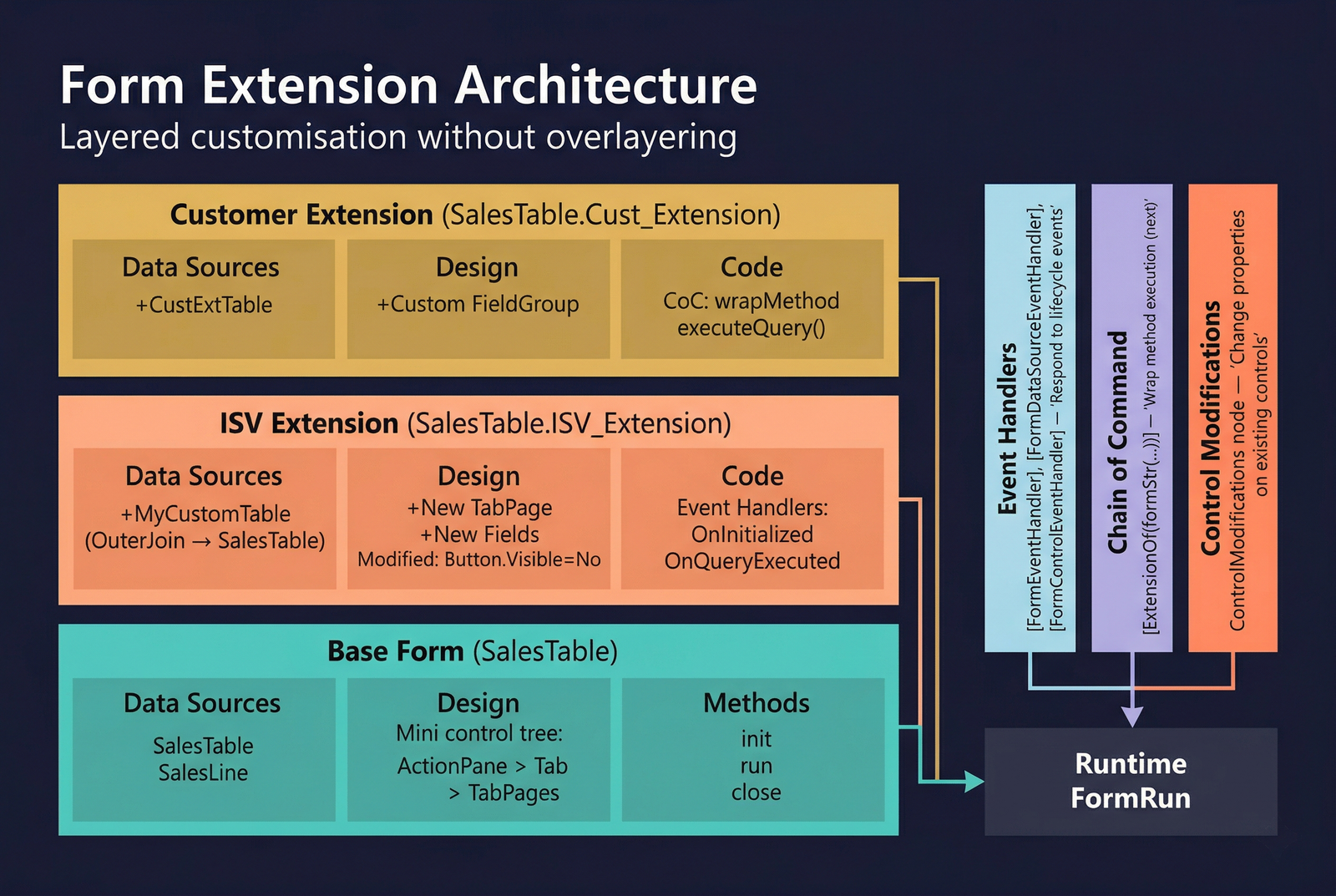
What Can Be Extended
| Capability | Description |
|---|---|
| Add Data Sources | Add new data sources to the form, joined to existing data sources. |
| Add Controls | Add new controls anywhere in the design tree — fields, groups, tabs, buttons, action pane tabs. |
| Modify Control Properties | Change properties on existing controls (e.g., set Visible = No, change Label, move controls between containers). |
| Subscribe to Events | Attach event handlers at form, data source, field, and control levels. See Event Handlers. |
| Chain of Command | Wrap existing form, data source, and field methods. See Code Extensions. |
Extension Object Structure
The extension object contains its own nodes:
| Node | Type | Description |
|---|---|---|
| DataSources | AxFormDataSourceRoot | New data sources joined to existing ones on the base form. |
| Controls | AxFormExtensionControl | New controls placed into the existing design tree with position metadata. |
| ControlModifications | AxExtensionModification | Property overrides on existing controls (e.g., Visible, Enabled, Label). |
Adding Data Sources
New data sources added in an extension follow the same property model as form data sources. The JoinSource property must reference an existing data source on the base form so the framework knows how to link the data.
An extension data source can only join to data sources that already exist on the form (including those added by other extensions loaded before yours). Be mindful of model load order when multiple ISV extensions exist on the same form.
Adding Controls
Extension controls are added to the form's design tree by specifying an existing container as the parent. Each control's position within the container is set using PositionType and PreviousSibling.
| Property | Type | Description |
|---|---|---|
Name | String | The control name (prefix with your solution abbreviation). |
Parent | String | The existing container control to add this control into. |
PositionType | ExtensionItemPositionType | Where to place the control. Values: Begin (0), End (1), AfterItem (2). |
PreviousSibling | String | When PositionType = AfterItem, the sibling control to place after. |
Modifying Existing Controls
The ControlModifications node allows you to change properties on controls defined in the base form:
- Setting
Visible = Noto hide a standard control. - Changing a control's
LabelorHelpText. - Setting
Enabled = Noto disable a control. - Moving a control to a different container.
Not all control properties can be modified through extensions. Layout-critical properties that would break form patterns may be restricted. Always test pattern compliance after modifying control properties.
Naming Conventions
| Pattern | Example | Description |
|---|---|---|
| Extension object | SalesTable.SAMOModel | Base form name + dot + your model name. |
| New data sources | SAMOCustomTable_ds | Prefix + table name + _ds suffix. |
| New controls | SAMOCustTierField | Prefix + descriptive name. |
| New groups | SAMOCustomGroup | Prefix + descriptive name. |
Best Practices
- One extension per model per form. Do not create multiple extensions of the same form in a single model.
- Prefer event handlers for additive logic. They are cleaner and have less risk of breaking with updates.
- Use CoC for pre/post logic. When you need to wrap a method's execution, CoC is the correct approach.
- Test pattern compliance. After adding controls or modifying the design, run the form pattern validator to ensure the form still passes.
- Document your extensions. Use clear naming conventions and add developer documentation explaining why the extension exists.
- Never copy and replace. If you need to replace an entire method, reconsider the approach.
Properties
| Property | Display Name | Type | Description |
|---|---|---|---|
| Form ExtensionAxFormExtension | |||
| Name | Name | String | The name of the extension (follows BaseForm.Package naming). |
| Tags | Tags | String | Tags for this element separated by semicolon. |
| Extension ControlAxFormExtensionControl | |||
| Name | Name | String | The name of the extension control. |
| Tags | Tags | String | Tags for this element separated by semicolon. |
| Parent | Parent | String | The existing container control to add this control into. |
| PreviousSibling | Previous Sibling | String | The sibling control after which this control is positioned (when PositionType is AfterItem). |
| PositionType | Position Type | ExtensionItemPositionType | Where to place the control relative to the parent. Values: Begin (0), End (1), AfterItem (2). |