Simple List and Details
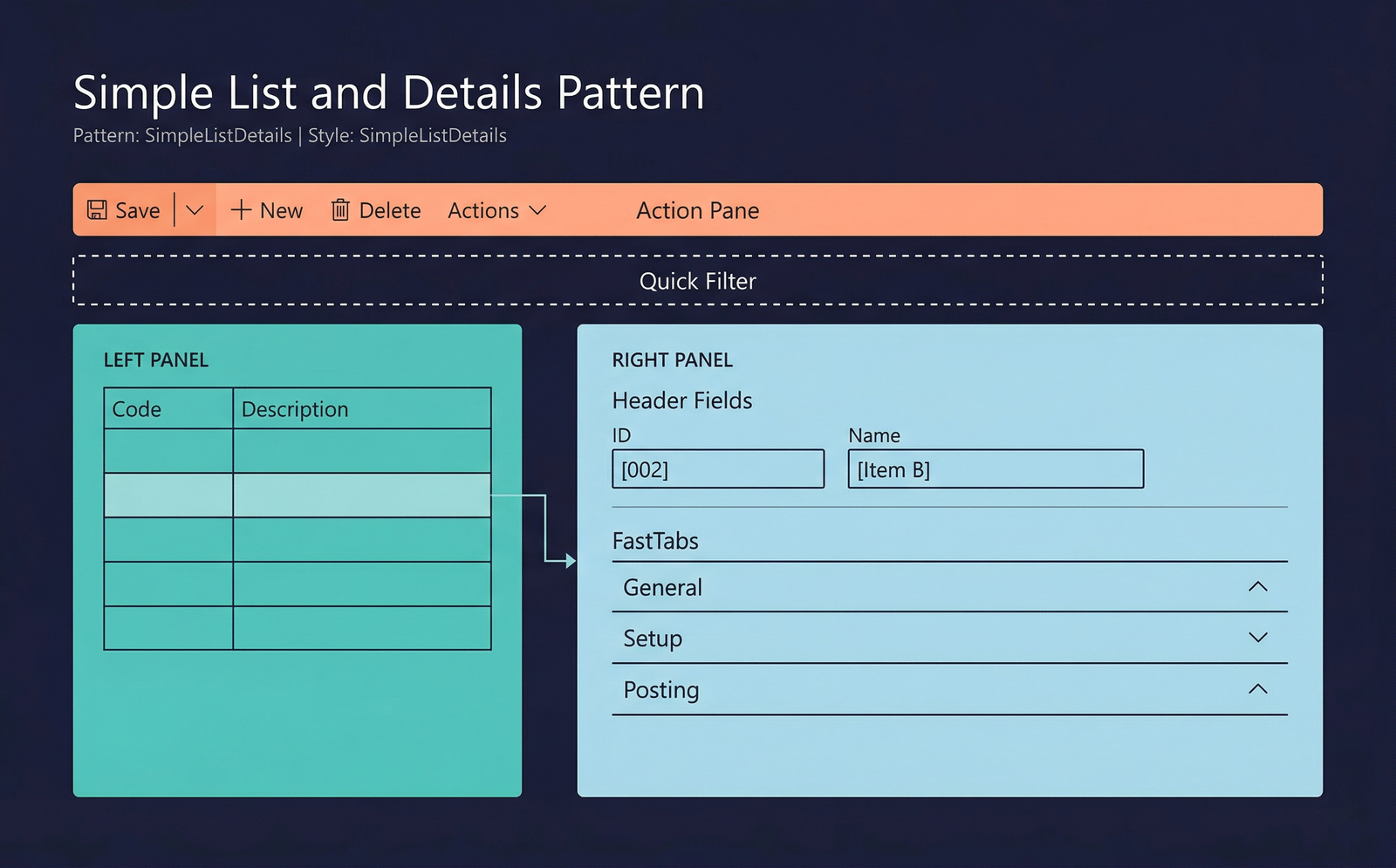
The Simple List and Details pattern divides the form into two panels: a list panel on the left showing a grid of records and a details panel on the right showing the full set of fields for the currently selected record. This pattern is ideal for reference data that has more attributes than can comfortably fit in a grid alone.
When to Use
- The entity has more fields than can be shown effectively in a single grid (typically more than 6–8 columns).
- Users need to see a list of records and detailed attributes of one record simultaneously.
- The data is reference or setup data — not transactional documents with header/lines.
- The form should support inline record selection in the list with immediate detail refresh.
- There is no need for a full master-data form with FastTabs and a navigation list.
Variations
Simple List and Details (Standard)
The default variant. A two-panel layout with the list on the left and a details area on the right. The details area uses a single group or a set of field groups.
Simple List and Details with FastTabs
The details panel on the right uses a Tab control with FastTabs instead of a single flat group. This variation is appropriate when the entity has enough fields to warrant collapsible sections.
Simple List and Details with Standard Tabs
The details panel uses standard tabs (non-collapsible visual tab pages) instead of FastTabs. Used when the entity's attributes fall into a handful of distinct, equally important categories.
Key Components
| Component | Control Type | Required | Description |
|---|---|---|---|
| Action Pane | AxFormActionPaneControl | Yes | Toolbar with New, Delete, and custom actions. |
| Quick Filter | AxFormGroupControl | No | A filter bar above the list grid for fast searching. |
| List Grid | AxFormGridControl | Yes | A narrow grid on the left showing key columns. Selecting a row populates the details panel. |
| Details Panel | AxFormGroupControl or AxFormTabControl | Yes | The right-side area showing all fields for the selected record. May use a flat group, FastTabs, or standard tabs. |
Example Forms in D365 F&O
| Form | Menu Item | Description |
|---|---|---|
CustGroup | Accounts receivable → Setup → Customer groups | Customer groups. The list shows Group and Description; the details panel shows payment terms, tax settings, and financial dimensions. |
VendGroup | Accounts payable → Setup → Vendor groups | Vendor groups. Same structure as CustGroup from the payable side. |
TaxGroupTable | Tax → Indirect taxes → Sales tax → Sales tax groups | Sales tax groups. The list shows the group code; details show the tax codes included and setup parameters. |
InventItemGroup | Inventory management → Setup → Inventory → Item groups | Item groups. A focused reference form with list panel and detail fields for posting profiles and policies. |
Infographic Placeholder